

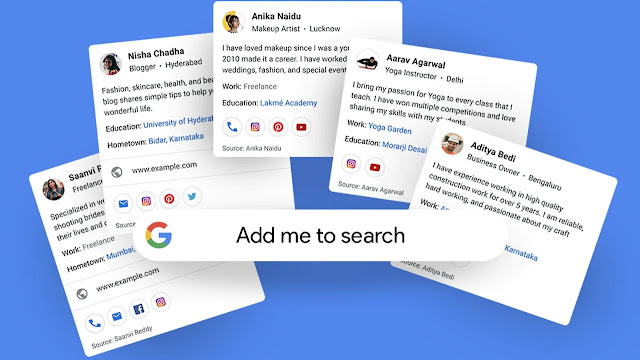
Google’s new search engine feature called “People Cards” added a new search string to Google as the company shared that anyone can create a virtual visiting card for free by typing his/her name in Google search or simply searching for “Add Me to Search” on Google.
However, still many people are not understanding exactly what they have to do for creating their own visiting cards on Google search and let others see these cards whenever they search for these people’s names.
So, here we are with a quick guide to help you understand how you can use Add Me To Search feature and create your own people card on Google search:
How to Create Your People Card on Google
Just make sure you fill all the required info as Google may not show your card if there’s a little information as they need the authentic info for making their feature more powerful and trusted. Just follow below simple steps:
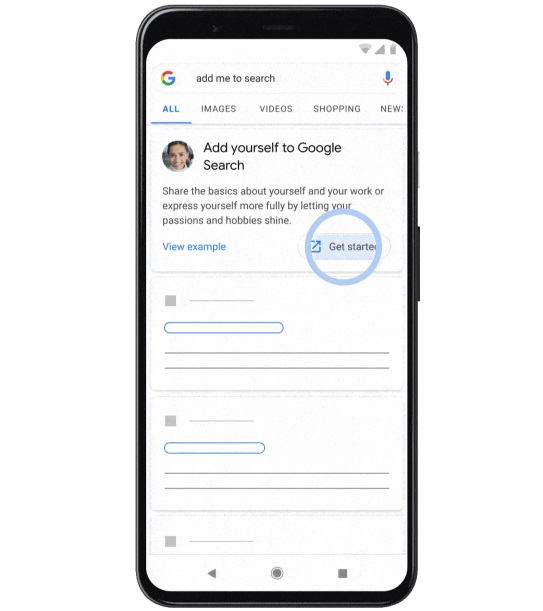
Open Google on Your Mobile and Search for Add Me To Search

At the top of Google SERPS, you will see a Get Started button, click on it
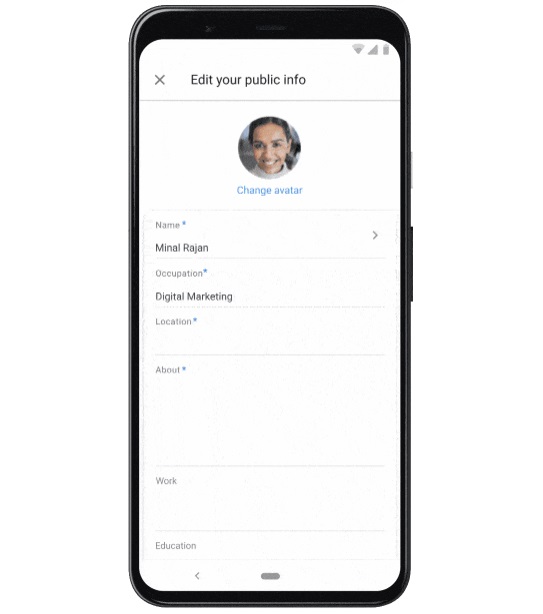
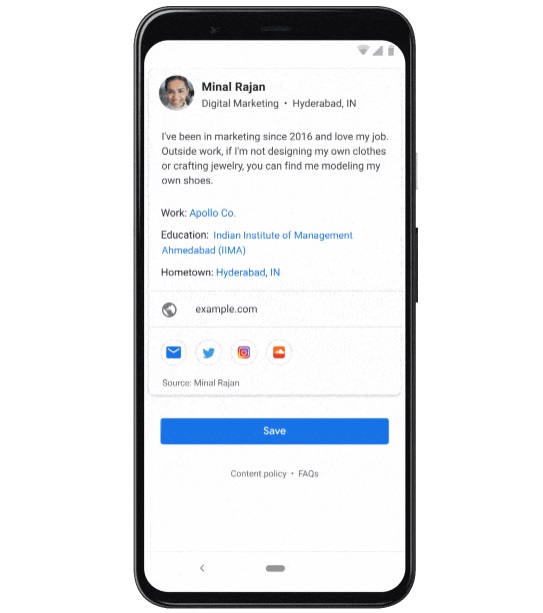
Fill the information it requires, Summary and Profession must be added
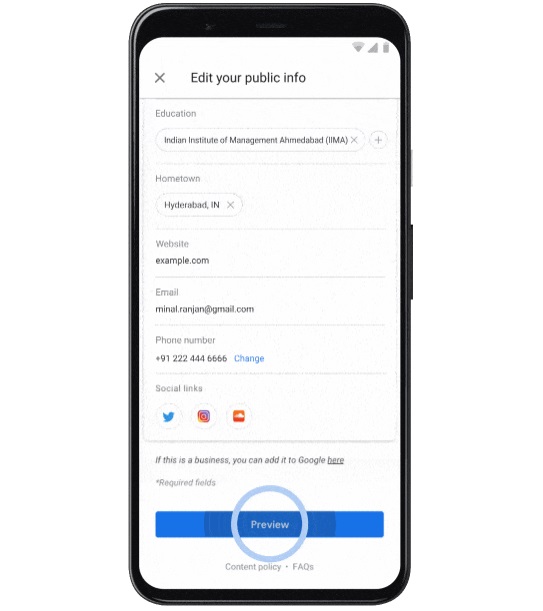
Tap on Preview and see how it looks in Google
Hit the Save button
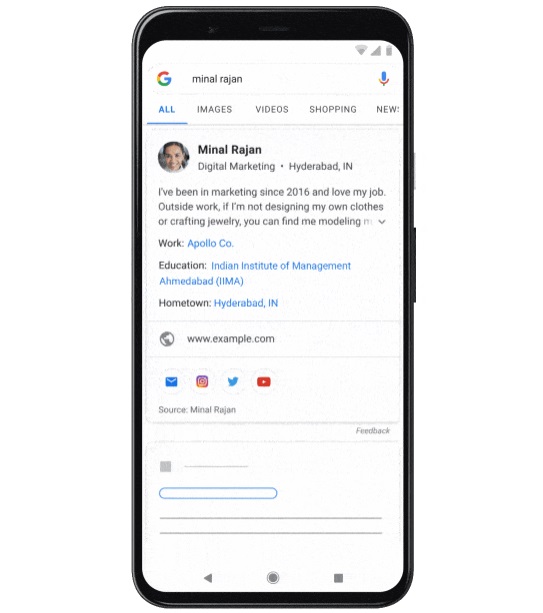
View on Google’s live search results:
That’s all.
Whenever someone will type your name, they will see this awesome visiting card with all the information you have provided like:
- Headshot
- Name
- Title
- Location
- About
- Work
- Education
- Websites
- Social Media Profiles
NOTE: There may be a hard time for getting your card to show in Google when you share the same name with a well-known personality. Like if your name is Rihana, you should use a distinguishable name by adding your profession or nickname next to your real name. For example, Rihana Blogger, Rihana Teacher, or Rihana Ree.
So, that’s how you can use Google’s new feature “People Cards” with the help of Add Me to Search.
If you learned how to create your people card on Google search from this article, share it with your friends and let them thankyou.
